💡 Imagine you are learning to drive...
Before hitting the real road, you practice on a training course first — with cones, lines, and an instructor watching
If you hit a cone? Just reset. Nobody gets hurt, no repair bills
A Demo Account is the same!
100% fake money — losses are not real
But everything else is identical to real trading
🎯 Practice here until you are proficient, then hit the real road!
Before hitting the real road, you practice on a training course first — with cones, lines, and an instructor watching
If you hit a cone? Just reset. Nobody gets hurt, no repair bills
A Demo Account is the same!
100% fake money — losses are not real
But everything else is identical to real trading
🎯 Practice here until you are proficient, then hit the real road!
Why Start With Demo?
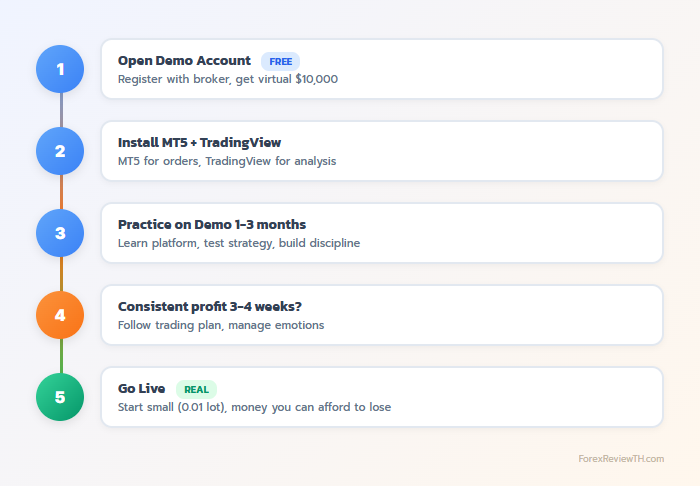
After learning all the theory, it is time to practice! But do not use real money yet — a Demo Account is the safest training ground.
- ✅ Learn how to use the platform without risking any money
- ✅ Test the strategies you have learned
- ✅ Practice your trading psychology and discipline
- ✅ Know how ready you are before using real money
Step 1: Open a Demo Account
🔥 How to Open Demo (Example with Exness — Popular Global Broker)
- Go to Exness.com (click here) → Click "Register"
- Enter your email and set a password
- Select your country → Click "Continue"
- The system will automatically create a Demo Account with $10,000
- Go to Personal Area → View your Login and Server details
- ⬇️ Download MT4/MT5 from the Download page
💡 Recommended Demo Balance:
Go to Personal Area → Set Demo Balance to match the amount you plan to trade with
If you will start with $500 → Set Demo to $500
This way you practice with realistic money management, not the "I have unlimited funds" mentality
Go to Personal Area → Set Demo Balance to match the amount you plan to trade with
If you will start with $500 → Set Demo to $500
This way you practice with realistic money management, not the "I have unlimited funds" mentality
Other Popular Brokers
- XM — Open an XM Account (click here) → Open a Demo Account
- HFM — Open an HFM Account (click here) → Try Free Demo
- Vantage — Open a Vantage Account (click here) → Open Demo Account
Step 2: Choose a Platform
3 Main Options (2025)
| Platform | Pros | Best for |
|---|---|---|
| MT4 | Simple, many tutorials, lightweight | Beginners 👍 |
| MT5 | More timeframes, newer features | Those who want the latest |
| TradingView | Beautiful charts, web-based, free! | Chart analysis 📊 |
💡 Recommendation for beginners (2025):
• Chart analysis: Use TradingView (free, beautiful charts, web-based)
• Placing orders: Use MT5 Mobile App (convenient, trade from your phone)
📱 MT5 App: Download from App Store / Play Store — it is free!
• Chart analysis: Use TradingView (free, beautiful charts, web-based)
• Placing orders: Use MT5 Mobile App (convenient, trade from your phone)
📱 MT5 App: Download from App Store / Play Store — it is free!
MT4 vs MT5 Comparison
| Feature | MT4 | MT5 |
|---|---|---|
| Timeframes | 9 | 21 |
| Built-in Indicators | 30+ | 38+ |
| Order Types | 4 | 6 (includes Buy/Sell Stop Limit) |
| Mobile App | Available (no longer updated) | Available (actively developed) ✅ |
Step 3: Install and Login
📱 MT5 Mobile (Recommended — Trade from your phone)
- Open App Store (iPhone) or Play Store (Android)
- Search for "MetaTrader 5"
- Install the app with the blue icon (by MetaQuotes)
- Open the app → Go to Settings (bottom right)
- Tap "New Account" → "Login to an existing account"
- Search for your broker name (e.g. "Exness") → Select the Demo Server
- Enter your Login and Password from the broker
- Done! Ready to trade 🎉
💻 MT4/MT5 on Computer
- Download from your broker's website (not metaquotes.net)
- Install the program (Next → Next → Finish)
- Open the program → File → Login to Trade Account
- Enter Login, Password and select the Demo Server
- If connected successfully, you will see charts and live prices
🌐 TradingView (Chart Analysis — Free!)
- Go to tradingview.com
- Sign up for a free account (use Google or Email)
- Type a currency pair in the search box e.g. "EURUSD"
- Start analyzing — draw lines, add indicators, save charts
- When you see a signal → Go open an order in MT4/MT5
💡 Tip: Many traders use TradingView for analysis + MT5 for order execution
Because TradingView has beautiful charts and great tools, but actual trading must go through MT4/MT5
Because TradingView has beautiful charts and great tools, but actual trading must go through MT4/MT5
Step 4: Getting to Know MT5
📱 MT5 Mobile — Main Sections
- Quotes (bottom left) — List of currency pairs and prices
- Chart (bottom center) — Price chart
- Trade (bottom center) — Open orders and new order placement
- History — Trading history
- Settings — Settings and account info
💻 MT5 Desktop — Main Sections
- Market Watch (left) — List of currency pairs and prices
- Chart (center) — Price chart
- Navigator (bottom left) — Indicators and Expert Advisors
- Toolbox (bottom) — Open orders, history, news
- Toolbar (top) — Various tool buttons
Step 5: Place Your First Order! 🎉
Basic Order Types
- Market Order — Buy/Sell immediately at the current price
- Pending Order — Set to buy/sell when price reaches a specified level
📱 How to Place an Order on Mobile (Step-by-Step)
- Tap on Chart or Quotes → Select a currency pair (e.g. EUR/USD)
- Long-press the chart or tap the "+" (Trade) button
- You will see the New Order screen
- Set Volume: Enter 0.01 (smallest lot, for beginners)
- Set Stop Loss: The price to auto-close if losing (very important!)
- Set Take Profit: The price to auto-close when in profit
- Tap Sell by Market (if you think price will drop) or Buy by Market (if you think price will rise)
- Done! View your order in the "Trade" tab
💻 How to Place an Order on Desktop
- Right-click on the chart → Trading → New Order (or press F9)
- Select the currency pair (Symbol)
- Enter Volume (Lot Size) — Start with 0.01!
- Enter Stop Loss and Take Profit
- Click Sell or Buy
⚠️ Very important! Before clicking Buy/Sell:
• ✅ Verify Lot Size = 0.01 (for beginners)
• ✅ Always set a Stop Loss! No exceptions
• ✅ Confirm you are on a Demo account, not Live
⛔ Never open an order without setting Stop Loss — this is the main reason accounts get wiped out!
• ✅ Verify Lot Size = 0.01 (for beginners)
• ✅ Always set a Stop Loss! No exceptions
• ✅ Confirm you are on a Demo account, not Live
⛔ Never open an order without setting Stop Loss — this is the main reason accounts get wiped out!
Types of Pending Orders
- Buy Limit — Set to buy below current price (wait for price to dip first)
- Sell Limit — Set to sell above current price (wait for price to rise first)
- Buy Stop — Set to buy above current price (wait for breakout up)
- Sell Stop — Set to sell below current price (wait for breakout down)
Step 6: Close an Order
📱 On Mobile
- Go to the "Trade" tab
- Tap on the order you want to close
- Tap "Close" → Confirm
💻 On Desktop
- Go to Toolbox (bottom) → Trade tab
- Right-click on the order → Close Position
- Or double-click the order → Click Close
🎯 Demo Account Goals
Before trading with real money, you must achieve these goals:
- ✅ Comfortable using the platform (open/close orders, set SL/TP)
- ✅ Trade Demo for at least 1-3 months
- ✅ Make consistent profits (not just 1-2 weeks)
- ✅ Follow your Trading Plan consistently
- ✅ Manage your emotions well
- ✅ Win Rate + Risk:Reward produce long-term profits
⚠️ Do not rush to trade with real money!
Many people trade Demo for 1-2 weeks, make a profit, then rush to go live → blow their account
Why? Because Demo has no emotional pressure
Fake money = no fear = bold decisions
Real money = fear = poor decisions
Practice on Demo until you are consistently profitable!
Many people trade Demo for 1-2 weeks, make a profit, then rush to go live → blow their account
Why? Because Demo has no emotional pressure
Fake money = no fear = bold decisions
Real money = fear = poor decisions
Practice on Demo until you are consistently profitable!
📋 Checklist Before Going Live
| ☐ | Traded Demo for at least 1-3 months |
| ☐ | Profitable for 3-4 consecutive weeks |
| ☐ | Have a written Trading Plan |
| ☐ | Keep a Trade Journal for every trade |
| ☐ | Set Stop Loss on every order (no exceptions) |
| ☐ | Can control emotions (no Revenge Trading) |
| ☐ | Prepared money you can 100% afford to lose |
Summary
- 🎯 Always start with a Demo Account — Like practicing in a driving course
- 📱 Use MT5 Mobile App — Convenient, trade anywhere
- 📊 Use TradingView for chart analysis — Free, beautiful charts
- ⚠️ Always set Stop Loss!
- ⏰ Practice on Demo for at least 1-3 months before going live
🎯 Next Lesson (Final Lesson!): Create a Trading Plan — build your trading strategy and start keeping a Trade Journal for self-improvement